Edit PDFs in Drive
Edit text and images, change fonts, reorder pages. Works like a doc—no need to leave Google Drive™ or download the file.
Edit and translate PDFs directly in Google Drive™. A Google Workspace automation tool by Very Big Machine—edit text and images, translate to 100+ languages, save back to Drive. No downloads.
Demo
Open, edit, translate, and save — all inside Google Drive™. No downloads, no extra apps.
Features
Three core features. All inside Google Drive™.
Edit text and images, change fonts, reorder pages. Works like a doc—no need to leave Google Drive™ or download the file.
Translate the whole PDF or selected text. Formatting stays intact. Save the translated version as a new file in Google Drive™.
Save to any folder in Drive. Overwrite the original or create a new version. No download, no re-upload.
Screenshots
Real screenshots from Super PDF Editor, running right inside Google Drive™.
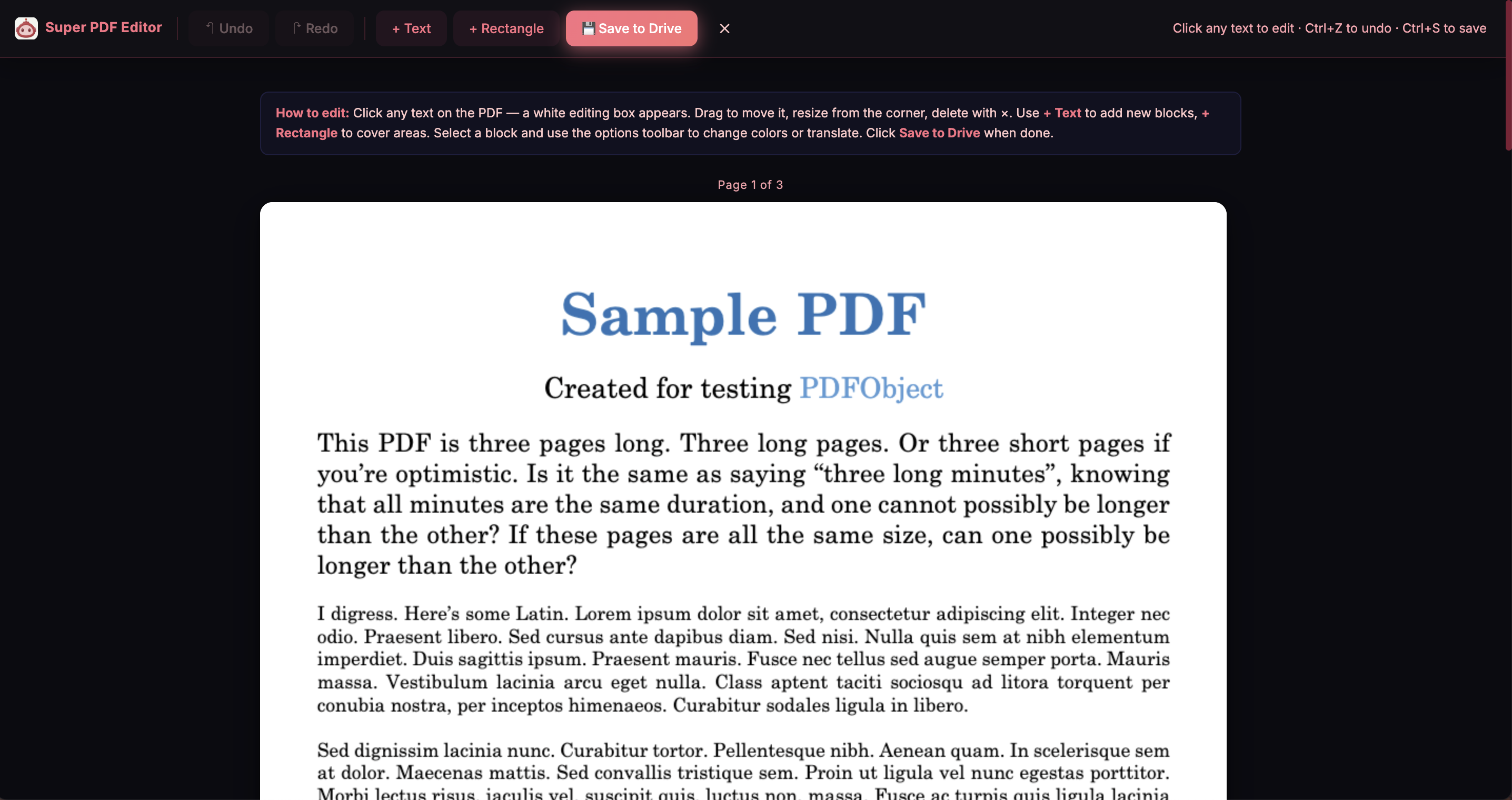
Right-click any PDF in your Drive and open it with Super PDF Editor. The editor loads directly in your browser — no download, no extra software. Your PDF is ready to edit in seconds.
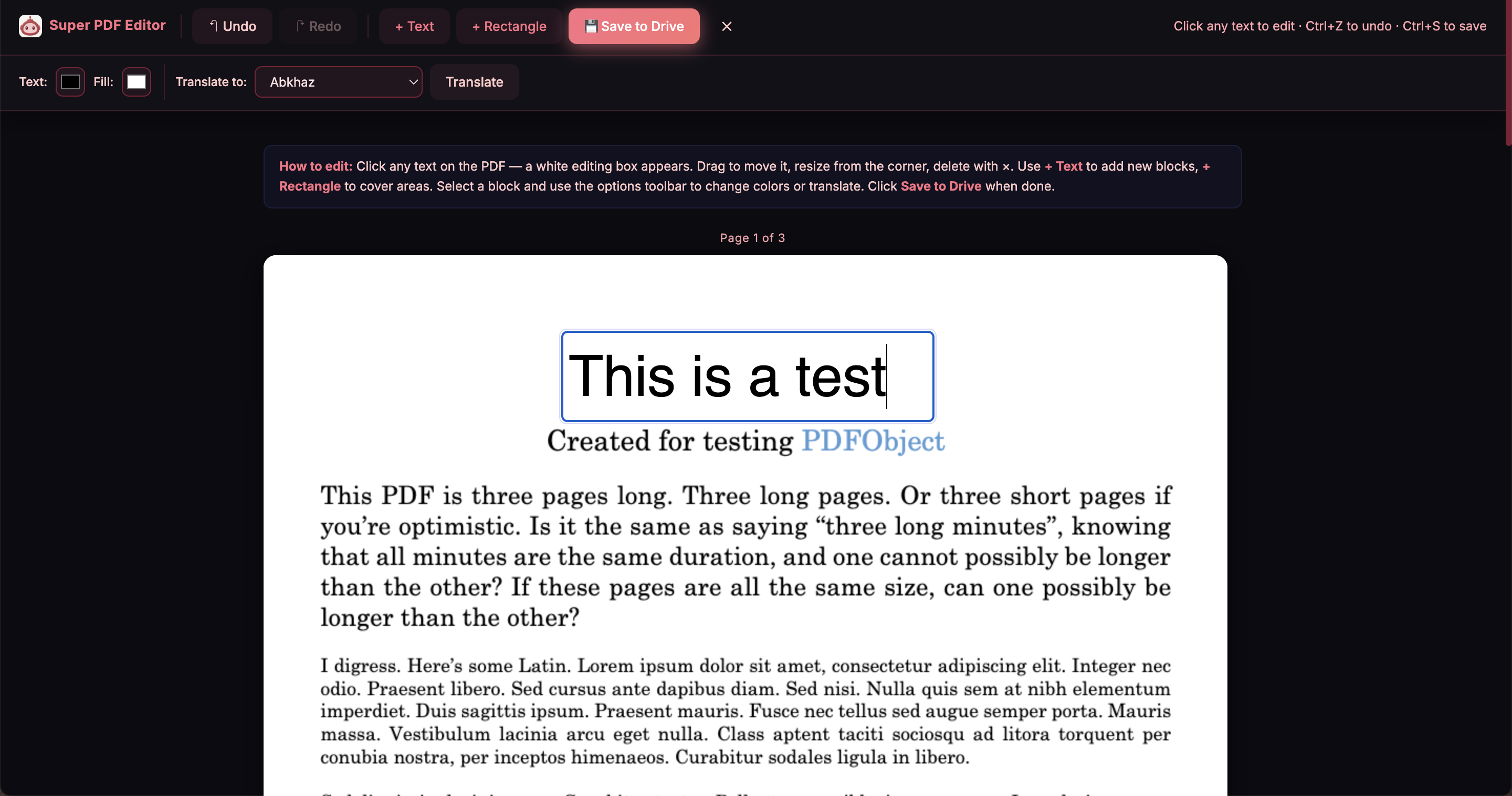
Click any text to edit it. Change wording, update numbers, fix typos — all with the original formatting intact. You can also edit images, swap fonts, and reorder pages without leaving Drive.
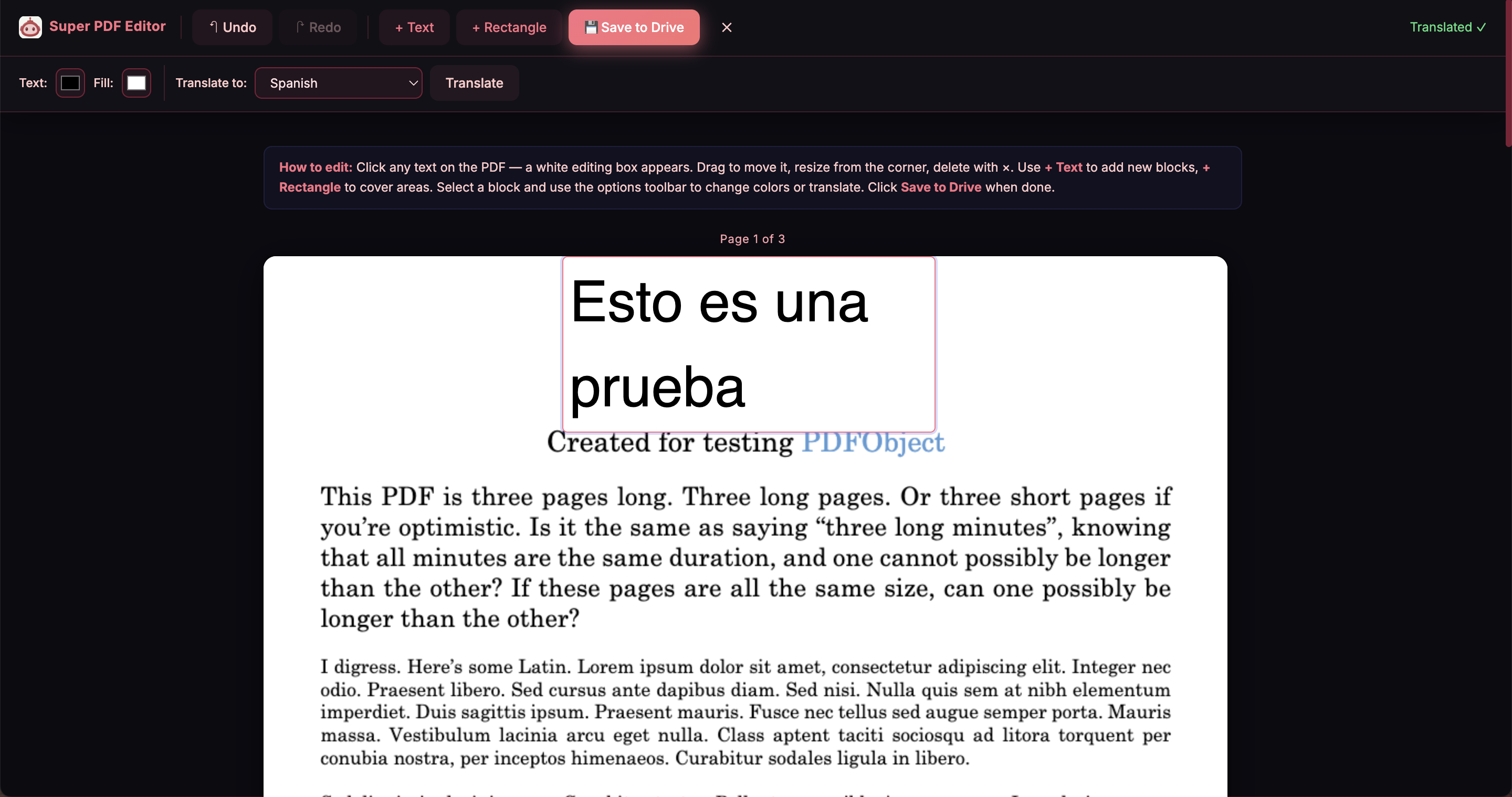
Select text or translate the whole document in one click. Choose from 100+ languages — Spanish, French, German, Arabic, Japanese, and more. Formatting is preserved. Save the translated PDF as a new file in Drive.
How it works
Add Super PDF Editor to your Google account in one click. It appears in Google Drive™ so you can open any PDF with it.
Right-click a PDF in Drive and choose "Open with Super PDF Editor," or open the add-on from the Drive sidebar.
Make your edits or run a translation, then save. The PDF is updated in Google Drive™. No downloads required.
For your role
See how Super PDF Editor fits your specific workflow.
Edit contracts, redact client info, translate legal documents.
Edit offer letters, redact PII, translate onboarding docs.
Edit worksheets, update materials, translate for students.
Annotate papers, translate foreign publications, edit research docs.
Edit agreements, redact client data, translate for buyers.
Use cases
Step-by-step guides for common PDF tasks in Google Drive™.
How to edit PDF text and images directly in Drive.
How to permanently remove sensitive information from PDFs.
How to translate PDFs to 100+ languages in Drive.
A free Adobe Acrobat alternative that works in your browser.
FAQ
Super PDF Editor is a Google Workspace add-on that integrates with Google Drive™. You open any PDF from your Drive, edit or translate it in the browser, and save it back to Drive—all without downloading files.
Yes. Super PDF Editor supports translation to over 100 languages. You can translate the whole document or selected text. Formatting is preserved and the translated PDF can be saved as a new file in Google Drive™.
No. Super PDF Editor is a web-based Google Workspace add-on. Everything runs in your browser; no software to install and no files to download to your computer.
Super PDF Editor offers a free plan with core editing and save-to-Drive features. Paid plans add unlimited PDFs, full translation, and priority support.
Available on the Google Workspace Marketplace. No credit card required.
Install free